CarPlay photo widget: how to put a picture of your own car on the screen
Published · Updated · Apple steps checked against Apple's iPhone User Guide · written by N5 Labs, maker of Car Play Widgets: Dashboard
Short answer
To put a picture of your own car on the CarPlay screen, use a CarPlay photo widget. Apple's guide says the CarPlay wallpaper is chosen from the available options, and it has no step for adding your own photo. Since iOS 26, CarPlay shows small iPhone widgets to the left of its Dashboard, and a widget can hold a photo. Make a photo widget of your car on the iPhone, then add it under Settings, General, CarPlay, your car, Widgets. This guide uses Car Play Widgets: Dashboard, which N5 Labs, the publisher of this site, makes and which the iPhone lists as Car Widgets. It cuts your car out of the photo background on the phone, or you can pick your model from a library of about 1,100 car models. Designing is free, but saving a widget needs Pro.
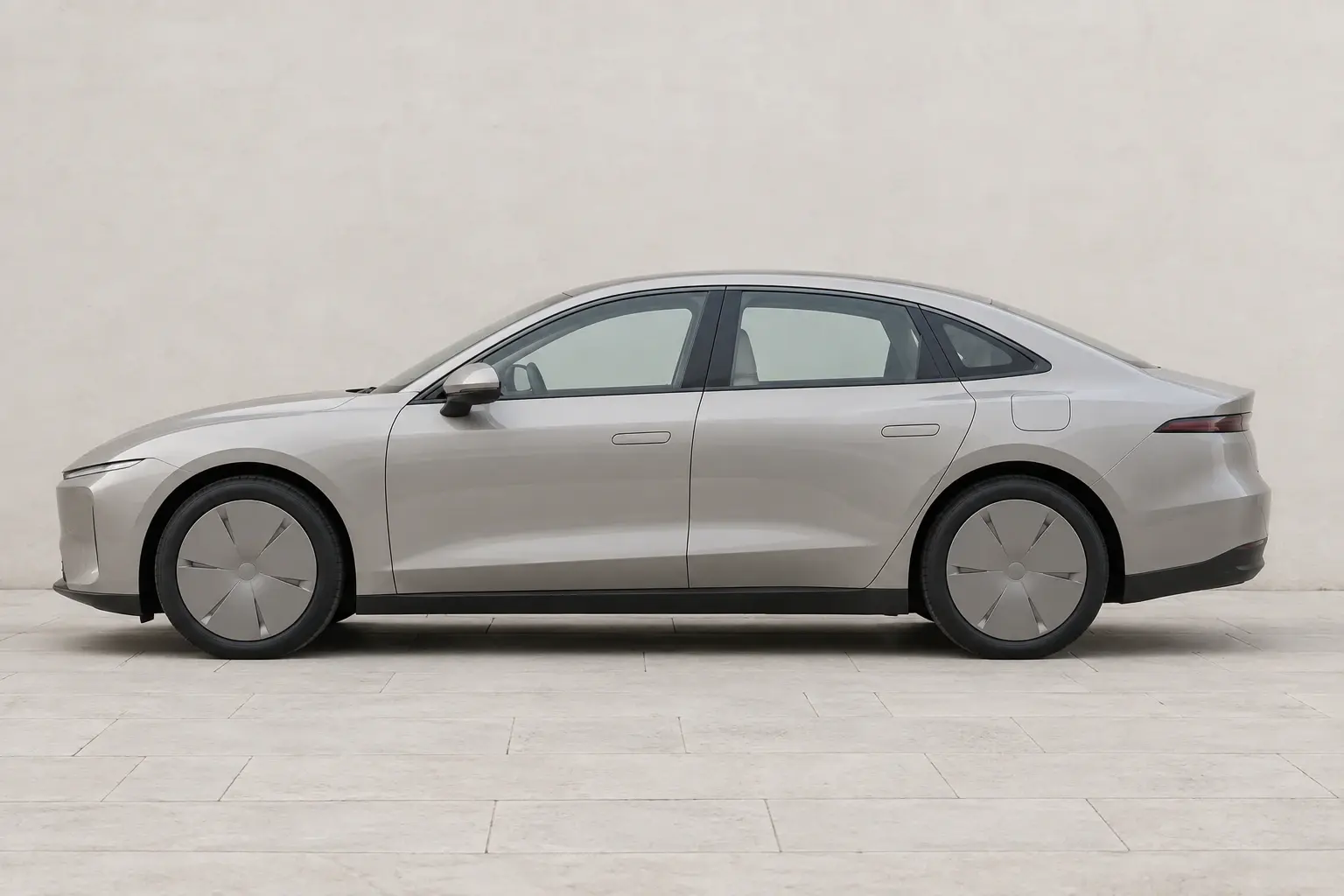
Wallpaper or widget: what Apple allows
CarPlay has two places a picture could go. Only one of them takes a photo of your own.
| Question | CarPlay wallpaper | Photo widget |
|---|---|---|
| Your own photo | Apple's guide has no step for it. You choose one of the available options | Yes, through a widget app |
| Where you set it | On the CarPlay screen: Settings, Wallpaper | On the iPhone: Settings, General, CarPlay, your car, Widgets |
| What it is | The background of the CarPlay screen | A small widget in a stack to the left of the CarPlay Dashboard |
| iOS version | Described in Apple's guides for iOS 26 and iOS 27 | iOS 26 or later, and a CarPlay display that shows widgets |
Sources: Change settings in CarPlay for the wallpaper, Customize widgets in CarPlay, About iOS 26 Updates and Apple Developer: CarPlay for widgets.
Make a widget from a photo of your car
- 1
Install the app
Install Car Play Widgets: Dashboard. The iPhone lists it as Car Widgets.
- 2
Start from your photo
On the Widgets tab, under Your car, tap My photo and choose a photo of your car.
- 3
Let the app cut the car out
The app lifts the car off the background on the iPhone. Under Photo Background, choose Cut Out to keep only the car, or Keep Photo to use the whole picture.
- 4
Finish the design
Type a nickname and pick a font and a border. A cutout can also use one of the app's layouts. A kept photo fills the widget.
- 5
Save it
Tap Save. Saving requires Pro. Without it, the app shows the Pro offer and finishes the save after a purchase.
- 6
Add the widget to CarPlay
While you are not driving, open Settings on the iPhone, tap General, tap CarPlay, tap your car, tap Widgets, then tap Add Widgets. Choose Car Widgets and add its widget, which is called Car Widget.
- 7
Check it in the car
Connect to CarPlay while parked and look to the left of the CarPlay Dashboard, where Apple puts the widget stacks. The number of stacks depends on your vehicle's CarPlay screen.
The Settings path is Apple's. A new Car Widget shows your newest saved design.
What the cutout can and cannot do
The cutout runs on the iPhone. The editor tells you which of four results you got, and you can switch between Cut Out and Keep Photo until you save.
| Result | What happens |
|---|---|
| A clean cutout | The background is removed and Cut Out is selected for you. |
| A rough cutout | The app keeps the cutout and says the edges may need a look. |
| No car found | The app says so and keeps the whole photo. You can still switch to Cut Out to see what it lifted. |
| Nothing to cut | The app says so and keeps the photo whole. |
A CarPlay photo widget for any photo, not only a car
The widget does not have to show a car. Apple's developer page says an app's small widget appears in CarPlay with no changes required, so a small photo widget from an app you already have may be offered when you tap Add Widgets. Apple publishes no list of them, so the list on your own iPhone is the answer. Apple Developer: CarPlay
In Car Play Widgets: Dashboard the steps above work for any picture. Choose Keep Photo and the whole photo fills the widget. If the editor finds no car in the picture, it says so and keeps the photo whole. Saving still requires Pro.
No good photo? Pick your model instead
The app has a library of about 1,100 car models across 121 brands. In the editor, tap a car under Select Car Image, or open the full list to search by name or filter by brand. After adding a photo you can still tap Use library image instead.
The library holds 1,469 model-year entries for about 1,100 car models. Most entries come from catalogs for markets outside the US, so your car may be missing or shown as another market's version. The site and the app are not affiliated with any car maker.
Other apps whose listings mention your own car photo
From each US App Store listing on October 6, 2026. We did not test them.
- CarSkin: Widgets for Car (161 US ratings, 4.2 average). Its listing says you can upload a photo of your own car or choose your model, then change the color and add your license plate.
- Car Widgets: AutoDash (132 US ratings, 4.6 average). Its listing names a background remover that isolates the car in a photo you upload.
The roundup compares all nine apps, and the free apps page lists what each charges for.
What Car Play Widgets costs and what it cannot do
Browsing and customizing are free. Saving a widget requires Pro, a weekly or yearly subscription with no free trial. On October 5, 2026 the weekly plan was $4.99 in the US, and the app shows the current prices before you buy. The app has no CarPlay app of its own and reads no vehicle data. Its widgets need iOS 26 or later and a CarPlay display that shows widgets. On the iPhone the app is listed as Car Widgets. Car Play Widgets 1.5 has no synchronized lyrics. Its text cards show words you type yourself.
Frequently asked questions
How do I put a picture of my own car on my CarPlay screen?
Use a widget. Apple's guide says the CarPlay wallpaper is chosen from the available options and has no step for your own photo. On iOS 26 or later, make a photo widget of your car in a widget app, then add it on the iPhone under Settings, General, CarPlay, your car, Widgets. The picture then shows in a widget stack on the CarPlay dashboard.
Is there an app to make a widget from a photo of my car?
Yes. On October 6, 2026 two US App Store listings in our comparison described it: CarSkin says you can upload a photo of your car or pick your model, and AutoDash names a background remover for an uploaded car photo. Car Play Widgets: Dashboard, which N5 Labs makes, also does it: it cuts the car out of your photo on the iPhone, or you pick your model from a library of about 1,100 car models. We did not test the other two apps.
Can I set my own photo as the CarPlay wallpaper?
Apple's guide does not describe a way. It says to open Settings in CarPlay, select Wallpaper, and choose one of the available options. A photo of your own goes in a widget instead.
How big is the car picture on the CarPlay screen?
It is a small widget in a widget stack, the same size as other CarPlay widgets. It does not fill the screen. Apple's developer documentation says that when an app has no CarPlay app, a tap on its widget does nothing and the system dims the widget to show that. Our app has no CarPlay app, and we have not yet looked at its widget on a CarPlay screen.
Is there a CarPlay photo widget for any photo, not only a car?
Yes. CarPlay shows any app's small widget, so a small photo widget from an app you already have may be offered under Add Widgets. Apple publishes no list. In Car Play Widgets: Dashboard, the app N5 Labs makes, the same steps work for any picture: choose Keep Photo and the whole photo fills the widget.
Is a car photo widget free?
Designing it is free. Saving it, which is what puts it in a widget, requires Pro, a weekly or yearly subscription with no free trial. On October 5, 2026 the weekly plan was $4.99 in the US.
Make your car widget
Car Play Widgets: Dashboard is free to download, but saving a widget requires Pro.
Sources and disclosure
N5 Labs develops Car Play Widgets, and this guide uses it for the photo widget steps. Apple's behavior was read on October 6, 2026 on the pages below. Editor names, cutout results and the library size come from version 1.5 of the app.
- Apple iPhone User Guide: Change settings in CarPlay, Customize widgets in CarPlay (iOS 26) and What's new in iOS 26. Apple Support: About iOS 26 Updates, for where widget stacks sit.
- Apple Developer: CarPlay and Adding StandBy and CarPlay support to your widget.
- Car Play Widgets: Dashboard on the App Store.
Sources checked on October 6, 2026.