How to get a clock or a countdown on the CarPlay dashboard
Published · Updated · Apple steps checked against Apple's iPhone User Guide · written by N5 Labs, maker of Car Play Widgets: Dashboard
Short answer
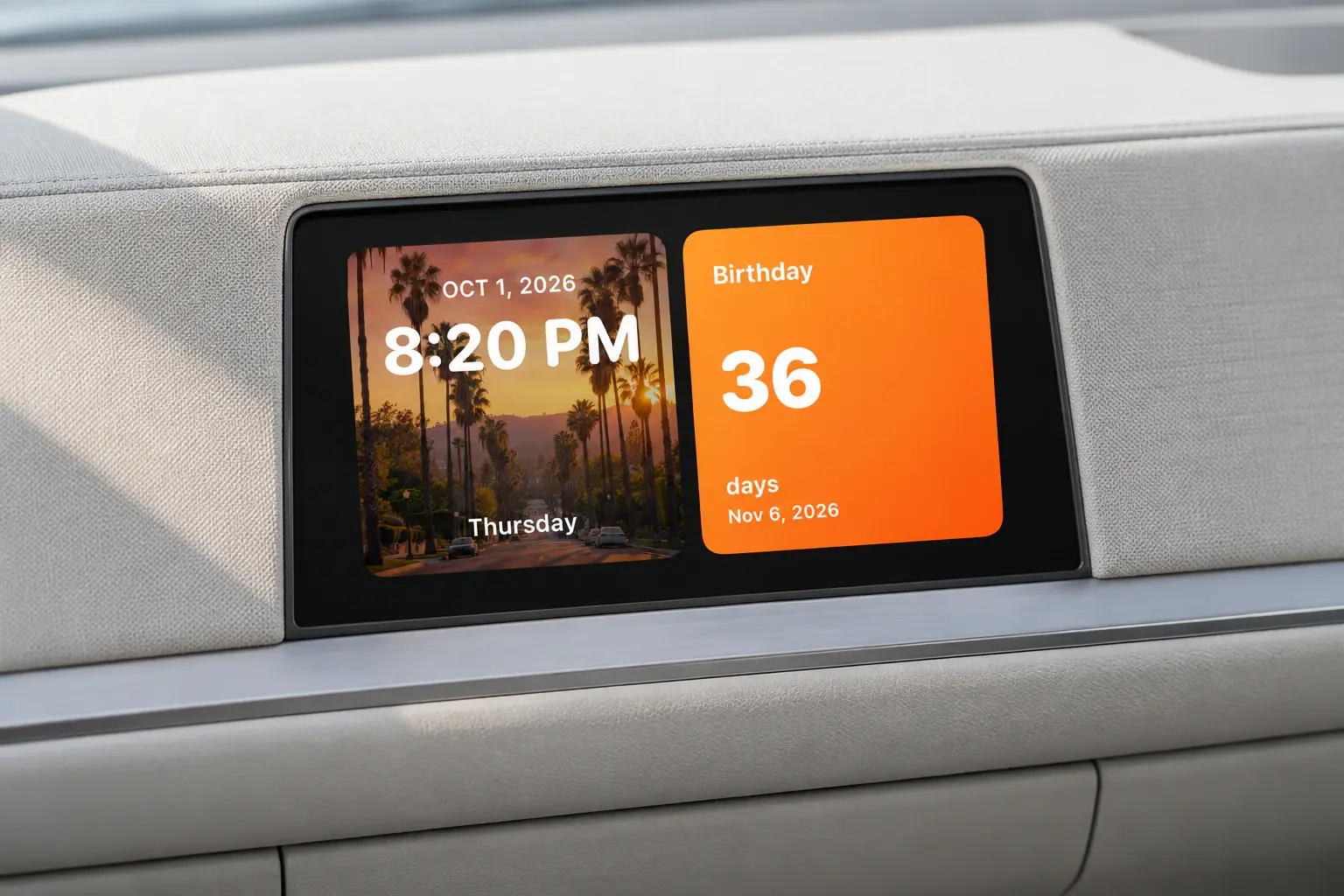
To get a clock or a countdown on the CarPlay dashboard, add a small widget that shows one. On an iPhone with iOS 26 or iOS 27, open Settings while you are not driving, tap General, tap CarPlay, tap your car, tap Widgets, then tap Add Widgets. The list holds small widgets from apps on your iPhone, so a clock or countdown from any widget app can go there. For one in your own style, design it first in a widget app. This guide uses Car Play Widgets: Dashboard, which N5 Labs, the publisher of this site, makes and which the iPhone lists as Car Widgets. It has six clock styles and nine countdown styles, two of them day counters, and its countdown counts whole days to a date you pick. Designing is free, but saving a widget needs Pro.
Apple's own options first
You may not need another app. This is what Apple's own pages offer.
A widget from an app you already have
Apple's developer page says an app's small widget appears in CarPlay with no changes required. So open Add Widgets and look for a clock or calendar widget from an app you already have. Apple Developer: CarPlay
Calendar events on the dashboard
Apple's guide says upcoming events appear in CarPlay Dashboard. That shows what is next and when, which is not a countdown. View your calendar with CarPlay
Siri and the Clock app
Apple's guide says Siri in CarPlay can reach iPhone apps such as Clock. Its Clock pages give asking for the time, or for a timer, as examples. Use other apps with CarPlay
A timer as a Live Activity
A Clock timer counts down from a time you set. Apple's guide says Live Activities appear on CarPlay Dashboard but does not name the timer, so check in your own car while parked. View Live Activities in CarPlay
Make a custom clock widget
- Install Car Play Widgets: Dashboard. The iPhone lists it as Car Widgets.
- On the Widgets tab, scroll to Date & Time and tap one of six styles: Classic, Top Date, Bottom Bar, Center, Outline or Poster.
- Change the style, the background image and the accent color. Every style shows the time, the date and the weekday.
- Tap Save. Saving requires Pro. Without it, the app shows the Pro offer and finishes the save after a purchase.
Make a countdown widget
- On the Widgets tab, scroll to Countdown and tap a style: Photo, Minimal, Sunset, Poster, Cartoon, Flip or Bookmark. The style selector in the editor lists nine in all: these seven and two day-counter looks, Days and Big Days.
- Type a name in Countdown Name, add an emoji if you like, and set Final Date.
- To count the days since a date, turn on Count up from the date.
- Pick an accent color. Photo, Poster, Days and Big Days can use your own photo as the background.
- Tap Save. Saving requires Pro.
Put the widget on the CarPlay dashboard
- 1
Check the iOS version
CarPlay shows widgets on iOS 26 or later, including iOS 27. The app installs on iOS 17 or later, and before iOS 26 its widgets show on the Home Screen only.
- 2
Design the clock or countdown
In Car Widgets, pick a style under Date & Time or under Countdown and set it up.
- 3
Save the design
Tap Save, which requires Pro. A new Car Widget shows your newest saved design, so save this one last.
- 4
Add the widget to CarPlay
While you are not driving, open Settings on the iPhone, tap General, tap CarPlay, tap your car, tap Widgets, then tap Add Widgets. Choose Car Widgets and add its widget, which is called Car Widget.
- 5
Check it in the car
Connect to CarPlay while parked and look to the left of the CarPlay Dashboard, where Apple puts the widget stacks. The number of stacks depends on your vehicle's CarPlay screen.
The Settings path is Apple's. On the Home Screen you can touch and hold a Car Widget, tap Edit Widget and pick another saved design. The style counts come from the editor of version 1.5. We have not yet looked at the widget on a CarPlay screen, so this page does not say how it looks there.
Clock and countdown at a glance
| Detail | Clock | Countdown |
|---|---|---|
| Styles | Six: Classic, Top Date, Bottom Bar, Center, Outline, Poster | Nine: Photo, Minimal, Sunset, Poster, Cartoon, Flip, Bookmark, and two day-counter looks, Days and Big Days |
| Shows | The time, the date and the weekday | A name, an optional emoji and whole days to or since a date |
| Updates | Every minute. It follows the iPhone's 12 or 24 hour setting | Once a day, at midnight |
| Options | Background image, accent color | Final date, count up, accent color, your own photo on four styles |
Other apps whose listings name a clock
From each US App Store listing on October 6, 2026. We did not test them.
- Car Widgets: AutoDash (132 US ratings, 4.6 average). Its listing names 14 clock styles, five calendar formats and a world clock.
- Carvia: Car Widgets (993 US ratings, 3.3 average). Its listing names calendar and time widgets.
- Car Widgets: Style Dashboard (516 US ratings, 4.6 average). Its listing names weather and time widgets.
What Car Play Widgets costs and what it cannot do
Browsing and customizing are free. Saving a widget requires Pro, a weekly or yearly subscription with no free trial. On October 5, 2026 the weekly plan was $4.99 in the US, and the app shows the current prices before you buy. The app has no CarPlay app of its own and reads no vehicle data. Its widgets need iOS 26 or later and a CarPlay display that shows widgets. On the iPhone the app is listed as Car Widgets. Car Play Widgets 1.5 has no synchronized lyrics. Its text cards show words you type yourself.
Frequently asked questions
Is there a CarPlay clock or countdown widget app?
Yes. For a clock, AutoDash lists 14 clock styles and a world clock on the US App Store, Carvia lists calendar and time widgets, and Car Widgets: Style Dashboard lists weather and time widgets. For a countdown, Car Play Widgets: Dashboard, the app N5 Labs makes, has nine countdown styles, two of them day counters, and six clock styles. We did not test the other apps.
How do I add a clock to my CarPlay screen?
Add a small clock widget. On an iPhone with iOS 26 or later, open Settings while you are not driving, tap General, tap CarPlay, tap your car, tap Widgets, then tap Add Widgets, and pick a clock widget from an app on your iPhone.
Can CarPlay show a countdown to a date?
Yes, in a widget. Apple's CarPlay guide has no countdown setting, so it comes from an app's small widget. In Car Play Widgets: Dashboard you type a name and set a final date. The widget counts whole days, not hours or minutes, and changes at midnight.
Is the clock or countdown widget free?
Designing one is free. Saving it, which is what puts it in a widget, requires Pro, a weekly or yearly subscription with no free trial. On October 5, 2026 the weekly plan was $4.99 in the US.
Why can't I find the app in the CarPlay widget list?
Look for Car Widgets. That is the name the iPhone uses for Car Play Widgets: Dashboard, and its widget is called Car Widget.
Build the clock or countdown
Car Play Widgets: Dashboard is free to download, but saving a widget requires Pro.
Sources and disclosure
N5 Labs develops Car Play Widgets, and this guide uses it for the custom steps. Apple's behavior was read on October 6, 2026 on the pages below. Style names, fields and update times come from version 1.5 of the app.
- Apple iPhone User Guide: Customize widgets in CarPlay (iOS 26), View your calendar, Use other apps, View Live Activities, Set timers in Clock. Apple Support: About iOS 26 Updates, for where widget stacks sit.
- Apple Developer: CarPlay and Adding StandBy and CarPlay support to your widget.
- Car Play Widgets: Dashboard on the App Store.
Sources checked on October 6, 2026.